Start and End Frame Control
Define the first and final shot so AI follows a clear visual path.
Bring your visual story to life with AI-generated motion. Upload a start and end frame—or a sequence of keyframes—and create a connected video that follows your planned scenes.
Frame 1
Frame 2
Turn your source frames into guided video sequences. Control the opening frame, final frame, and motion between each key moment to create polished AI video results.
Try Frame to Video Free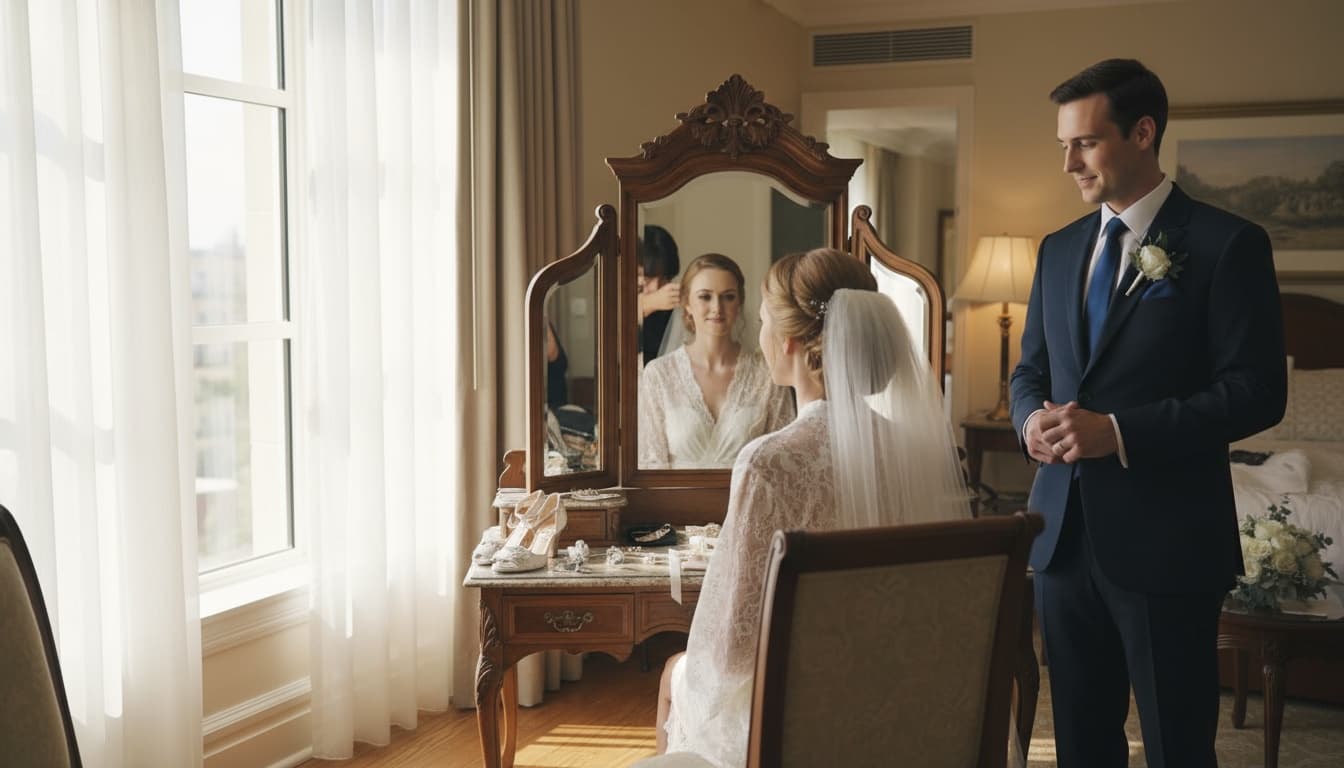
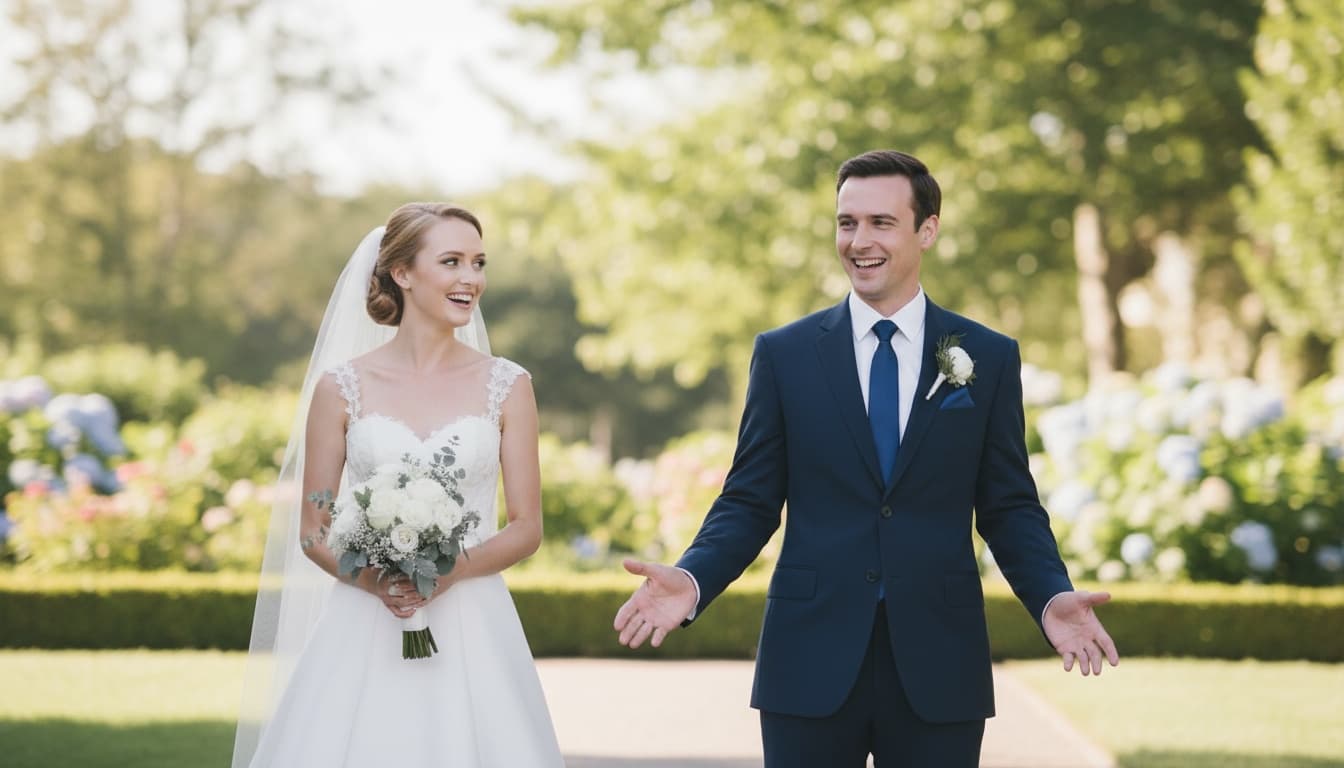
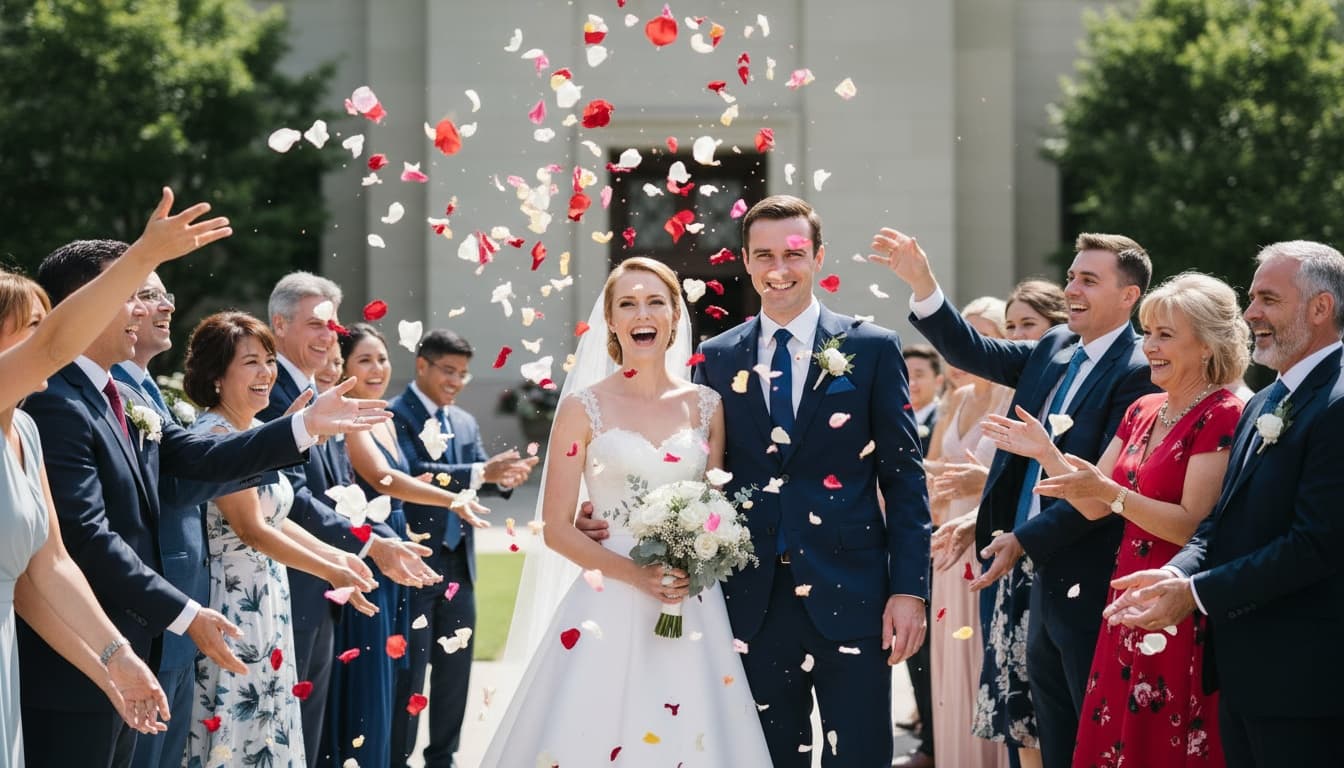
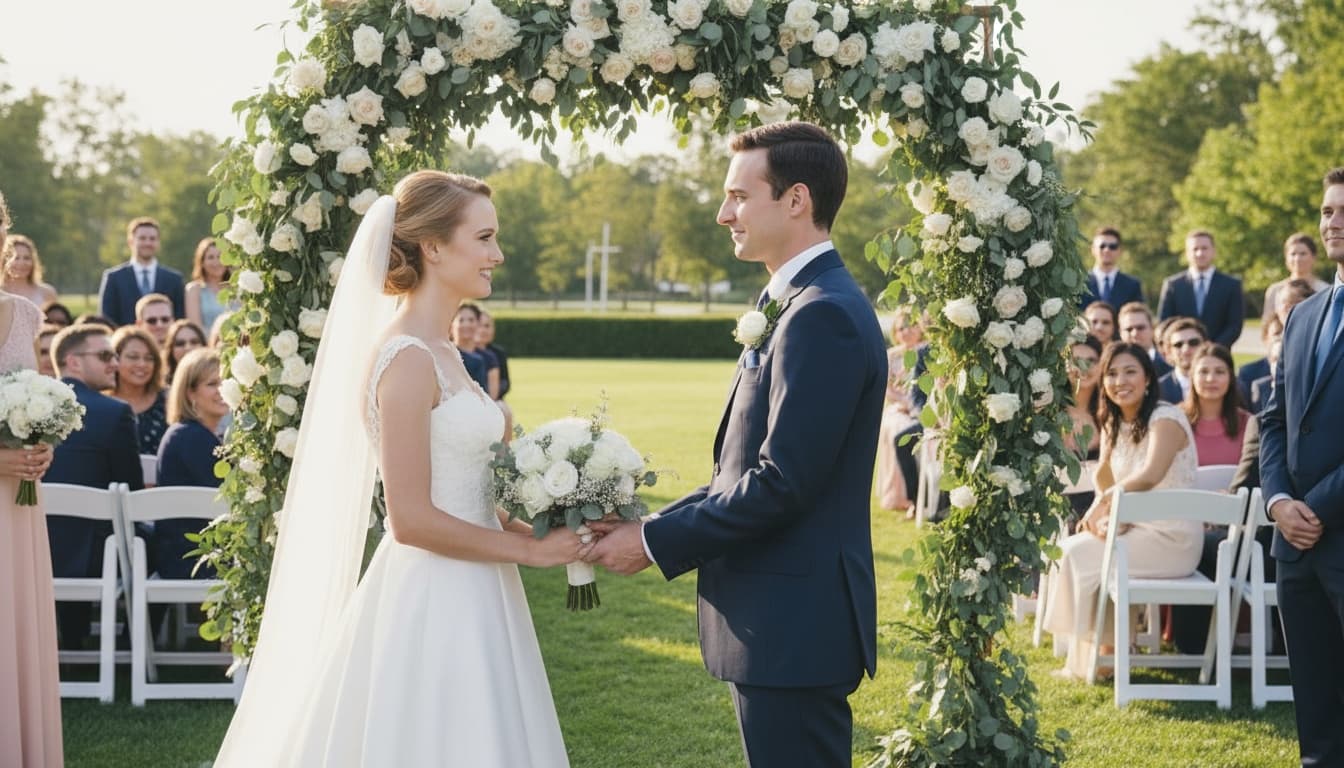
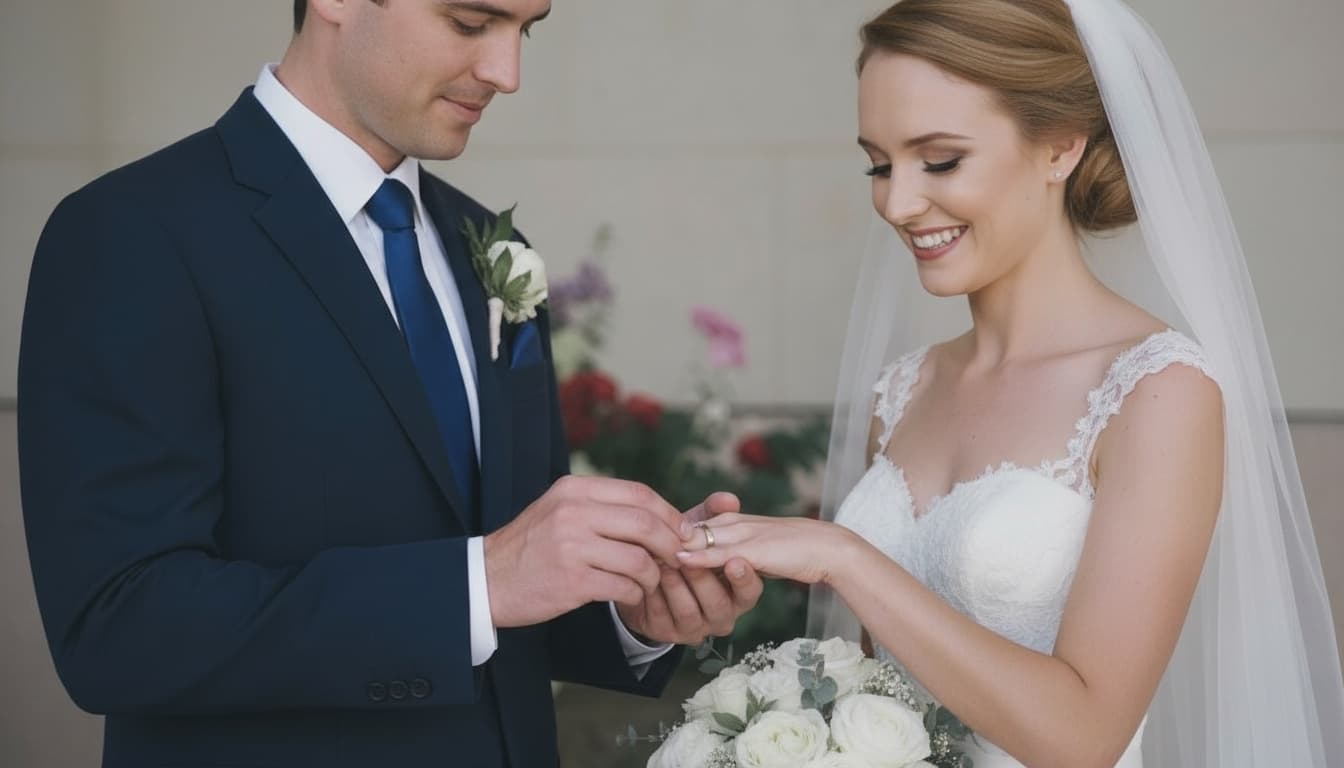
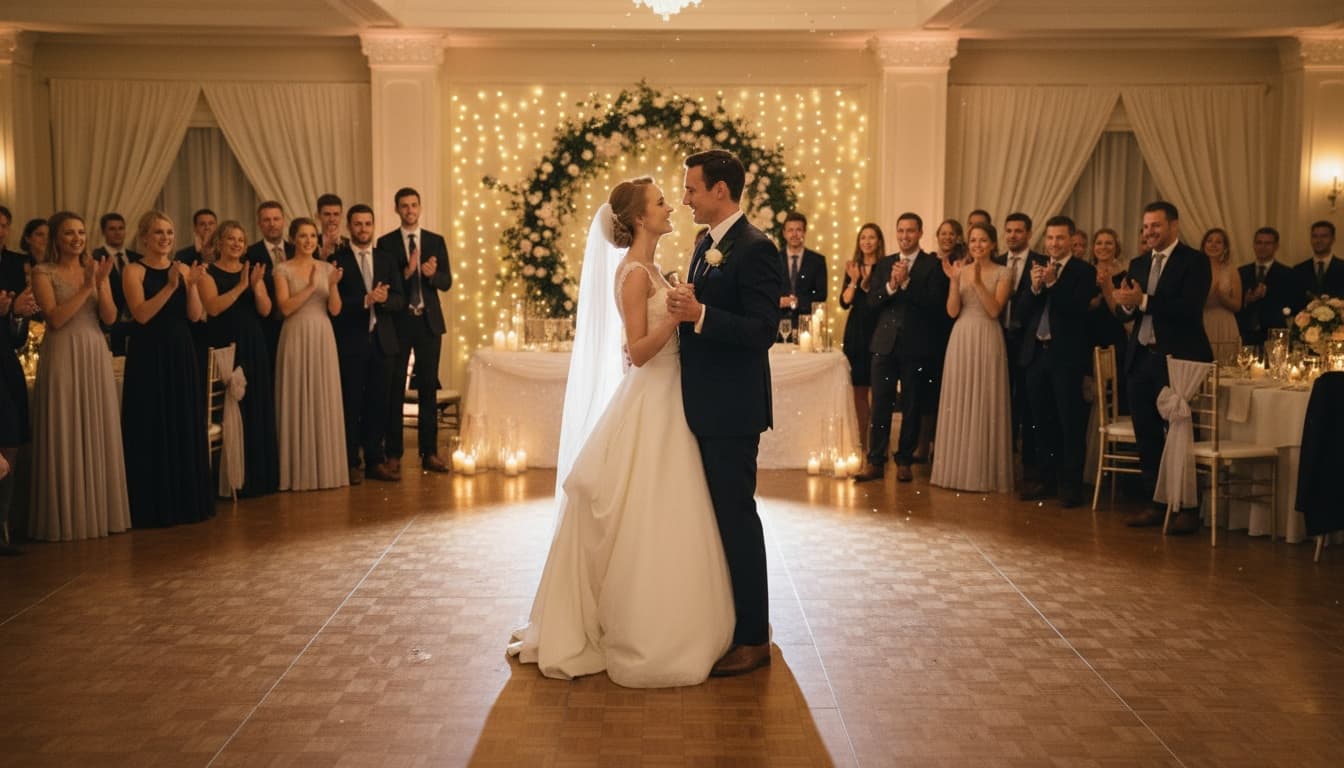
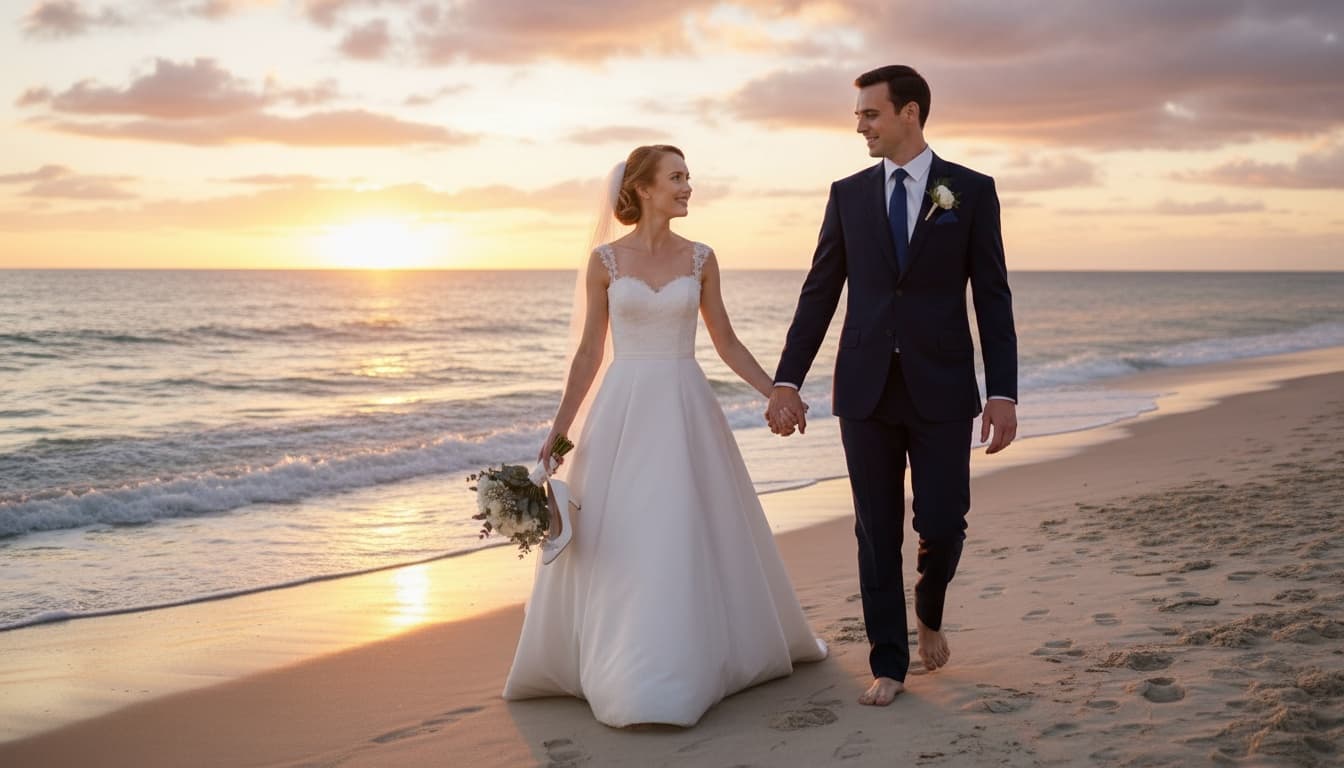
Define the first and final shot so AI follows a clear visual path.
Guide camera movement, subject action, and scene changes between frames.
Connect more key moments to create longer, more consistent video sequences.
Build a longer video by using multiple images as frame references, then guide the motion between each visual moment.
Add the images you want to use as visual frames. Each image gives the AI a clear moment to follow when building the video sequence.
Describe how the scene should move from one frame to the next, including camera motion, subject action, and visual changes.
Create a longer result by connecting multiple frame-guided clips into one smoother, more consistent AI video.
A start frame defines where your video begins, while an end frame defines where the scene should arrive. Upload both images to guide the AI from the first visual moment to the final result with a more predictable motion path.
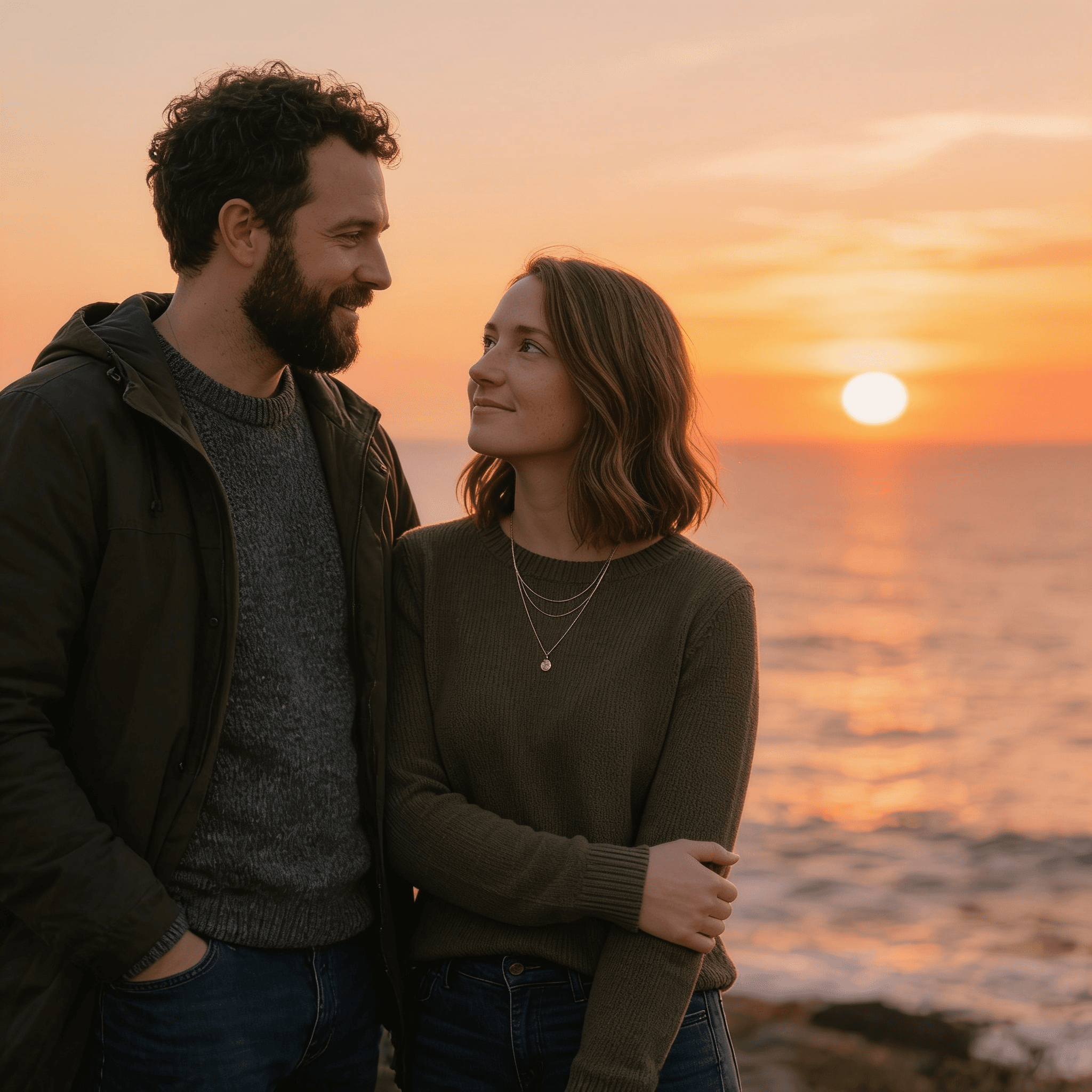
PRICING
Create more videos with a simple, transparent monthly credit plan.
Secure checkout powered by Stripe. Cancel anytime.
Answers to common questions about frame-to-video generation, supported inputs, and how to start creating with free credits.
An AI Frame to Video Generator turns uploaded image frames into a video. Instead of starting from text alone, you can give the AI visual references, such as a start frame, an end frame, or multiple key moments, so the generated video follows a clearer visual direction.
Image to Video usually starts from one image and animates it. Frame to Video uses multiple image frames as references, giving you more control over how the scene begins, changes, and ends.
You can upload multiple images to guide the video sequence. The supported number of frames may vary by generation mode, model, and video settings.
Frame to Video is designed for common video formats used across social media, ads, and creative workflows. Available ratios and resolutions may depend on the selected generation model and output settings.
Yes. You can try Frame to Video with free credits before choosing a paid plan or buying more generation credits.
No. You only need to upload your images and describe the motion you want. The tool handles the video generation process, so you can create frame-guided videos without using a traditional video editor.
Upload key images, guide the motion between frames, and generate frame-to-video results with free credits.
Try Frame to Video Free